Build a battery quote
Follow this through once and you will have a complete battery quote: the home's solar and usage, a battery size and tariff recommended from a simulation of that home, a package to match, and a summary ready to send.
The Battery Quote Tool is one long page. Sections unlock as you complete them and stay on screen, so you can scroll back to anything you have already answered. Add-ons only appears when extras apply to this quote, so a given quote can be shorter than the list below.
This is the same tool your customer uses on your website. Working through it yourself is also the fastest way to see what they will be asked.
Before you start
- Have the property address to hand. Nothing meaningful happens until the quote has one and a pin on the map.
- Battery Quotes must appear in your Instant Quotes list. If it does not, batteries are not switched on for your account.
- At least one hardware package needs to be assigned to the tool, or you will reach the packages section with nothing to choose.
- Check the starting figures on the tool's Defaults tab. The bill, the recommendation, and the savings all start from them. See Battery Quote Tool settings.
Start with the address and the pin
The Battery Quote Tool asks for the property before the quote exists.
- Go to Instant Quotes → Battery Quotes.
- Click + Create new battery quote. A dialog titled Create instant quote opens, with the quote type set to Battery.
- Click Edit on the address. Type the address into Search for a UK address here, pick the property, and click Save address.
- Click Set pin. Drag the map so the marker sits over the property, then click Continue.
- Click Create.
You can also pick a project or a contact in that dialog. Choosing a project fills the address and the contact from the project. Choosing a contact fills the address only when the address is still empty.
The pin is the property this quote is for. The Battery Quote Tool does not look up an Energy Performance Certificate from the pin — the next section is existing solar.
Clicking Create creates the quote and opens it on Existing solar.
Get the pin right first time. You can change the address or move the pin later from Settings, but doing so clears everything from Existing solar onwards. On a quote you have already built out, that is most of the work.
Find your way around
The sidebar on the right lists every section that applies to this quote, with the quote's reference at the top and the price as it stands at the foot. Each entry summarises what you have answered — the solar setup, the bill, the recommendation, the package — so it doubles as a check on the quote so far. Click any entry to jump to that section. The PDF button below produces a printable version. On a narrow screen the sidebar becomes a bar across the top instead.
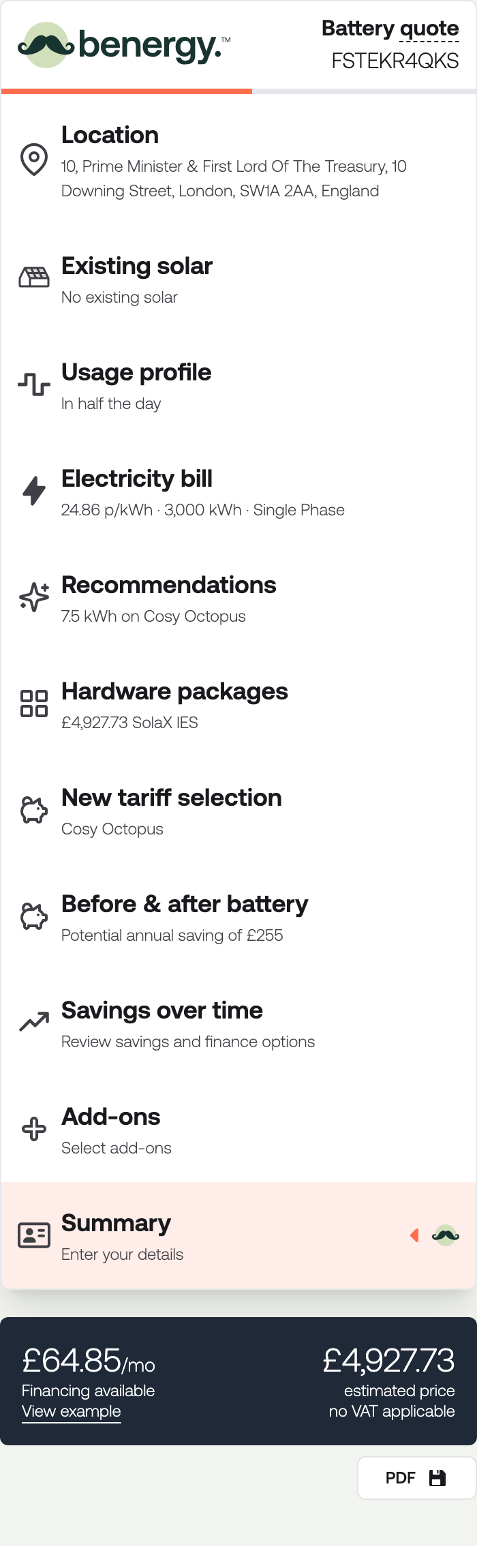
Along the top sits the row of controls you get in every quote tool, and your customer does not.

Settings is where you link the quote to a contact and correct the address or the pin. Share gives you the quote's web address and the email templates for sending it. Both are covered in Quoting on a customer's behalf. Under that row, Last updated opens the Activity log for the quote.
Most sections end with a Next step button. Once you have clicked it the section shows Step complete, and if you go back and change something it offers Save changes instead. Answers stay on the page until you click that button. Leave without it and they are gone.
Existing solar
The card is headed Existing solar. Panels already on the home change how the battery is simulated, and which packages the tool can offer.
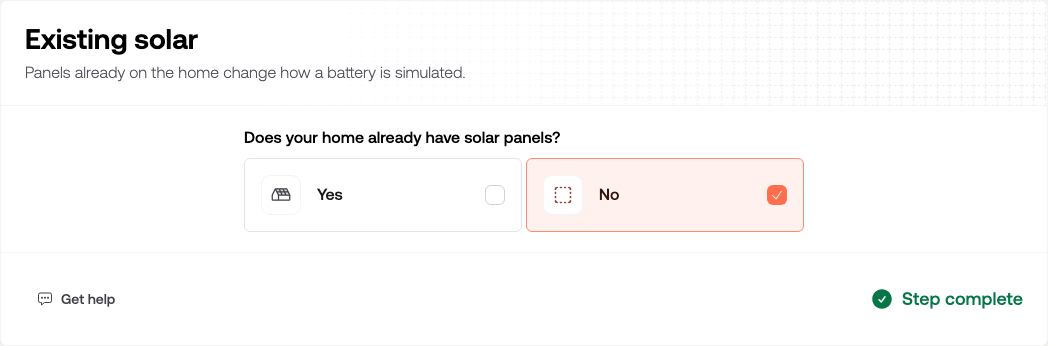
Does your home already have solar panels? comes first.
No existing solar
Click No, then Next step.
Existing solar
Click Yes. More questions appear:
- Annual generation — the kWh the panels produced over a full year, from the inverter app.
- An optional half-hourly generation file. Upload one to use the home's real generation shape instead of a typical UK year. The annual figure is then taken from the file. Use a typed annual figure instead goes back to the typed figure.
- Solar inverter size — the kW of the inverter already on the home, from its label or app. If you do not know it, tick I don't know and it is estimated from annual generation. It feeds the choice of inverter in each package and the G98 limit. See How a battery package picks its inverter.
- Are you on the feed-in-tariff (FIT) scheme?
- Are you on 'deemed export' for your FIT scheme? — only asked when the answer to FIT is Yes. With no export meter, export is counted as half of annual generation.
Click Next step once the answers are complete. Changing them after this section is complete clears everything from When you use power onwards. Changing only the solar inverter size keeps your later answers and re-picks the packages.
When you use power
Listed as Usage profile in the sidebar. This is how the household uses electricity across the day. Pick the typical household that fits best: home all day, in half the day, or out all day.
Instead of a typical household, you can upload half-hourly data:
- With existing solar, upload the home's energy use from a home energy management system. That is electricity used in the home, not what was left over after the panels.
- Without solar, upload a half-hourly import file, or connect Octopus.
Below the profile, say whether the home charges an electric vehicle and how it is heated with electricity. Both draw power at different times from the rest of the house.
Electricity bill
The bill is the starting point for the savings case. The figures open on your defaults, so change them to match the home.
What type of electricity tariff are you on? offers Standard tariff, Octopus tariff, or Other time-of-use.
- Standard tariff asks for the bill and the supply type: single phase or three phase.
- Octopus tariff looks up the regional rates from the property's postcode. Pick the tariff the home is on.
- Other time-of-use lets you enter the rates for each period of the day.
With existing solar, the bill also asks how much the home exports each year and the export rate. On deemed export, the export figure is worked out for you.
Recommendations
The tool simulates the home across a year, on each tariff and battery size it tests, and ranks them by annual saving. This takes a moment. While it runs the section shows Calculating recommendations….
The results show how the top tariffs compare. Click Next step to move on to the packages. The best result is carried forward as the recommended battery size and the new tariff.
If the section says it could not calculate recommendations, check the bill and the postcode, then click Try again.
Hardware packages
The card is headed Your tailored hardware packages. It lists the packages assigned to this tool that match the battery size and the existing solar setup.
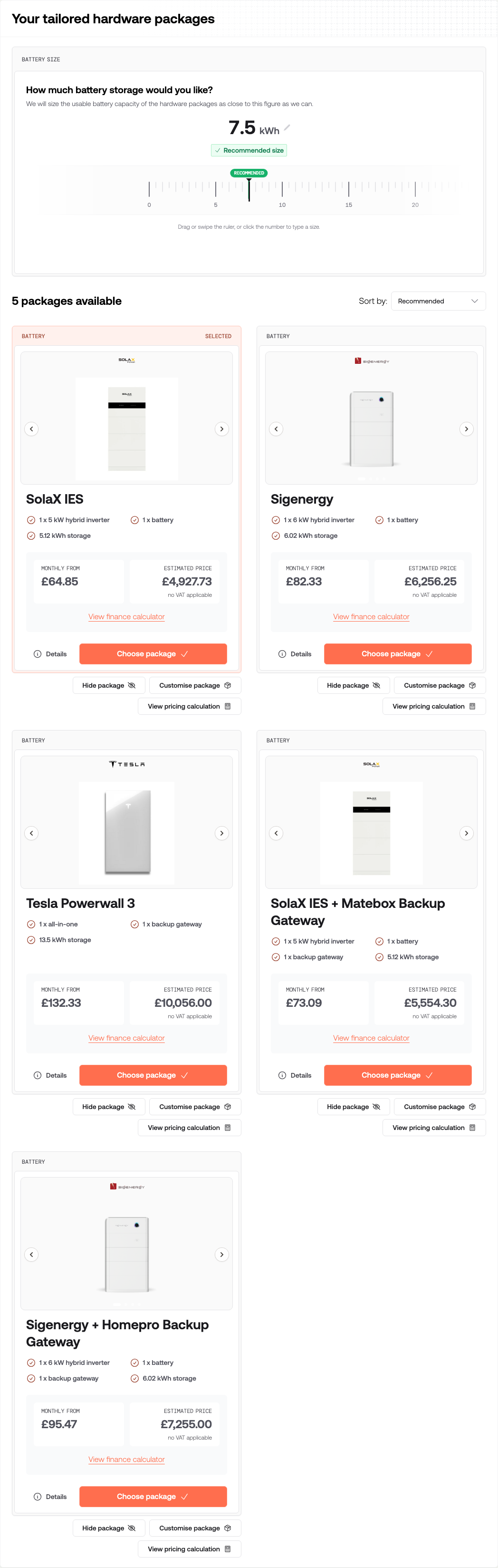
How much battery storage would you like? sits above the cards. It opens on the recommended size, marked Recommended size. Move it to change which packages are shown, then click Save changes. Back to recommended returns to the recommended size.
How a battery package picks its inverter
A package can list several inverters. Each card quotes one of them, or two of the same model when one cannot hold that much battery. The tool picks it like this:
- Supply — an inverter that matches the home's single-phase or three-phase supply comes first. A three-phase-only inverter is never quoted on a single-phase home.
- G98 — if the package has Constrain to UK DNO G98 limits where possible on, an inverter that keeps the home at or under 3.68 kW per phase comes next. The existing solar inverter counts towards that limit.
- Charge speed — the inverter has to fill the battery within the cheap hours of the new tariff. On a flat tariff it uses the charge window set on the tool's Defaults tab. With existing solar on a flat tariff, it only has to keep up with the existing solar inverter.
- Price — of the inverters that pass, the cheapest is quoted. If none is fast enough, the fastest is quoted.
The picker reads the battery limits on each product in your hardware catalogue. If a limit is missing, the tool assumes the product can do it.
Each card shows a system, an estimated price, and a monthly figure if you offer finance. Click Choose package on the one you want.
While you are building the quote yourself, each card also has Hide package, Customise package, and View pricing calculation. Your customer does not see those controls.
Hide package takes that option off this quote. A 1 package hidden control then appears in the top bar; click it to open Restore hidden packages and put it back.
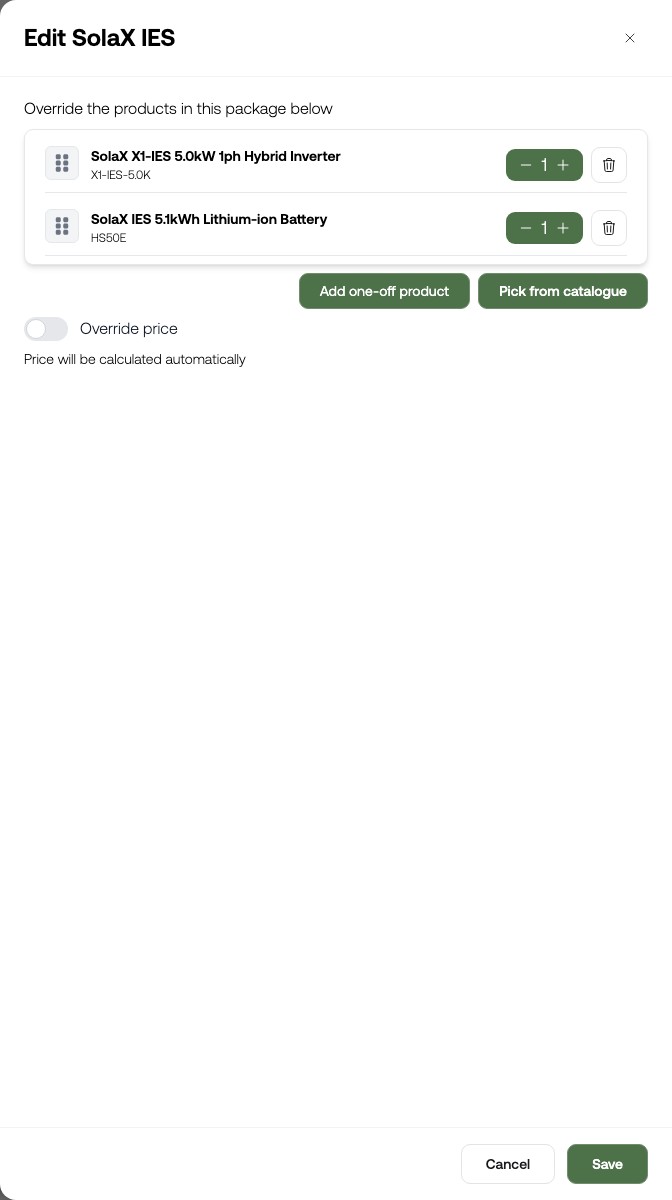
Customise package lets you change the products, quantities, and price for this quote only. Once a package on the quote is customised, the earlier answers are locked: Existing solar, When you use power, Electricity bill, Recommendations, the battery storage picker, and New tariff selection can no longer be changed. Answer those first.
View pricing calculation shows how the estimated price was built.
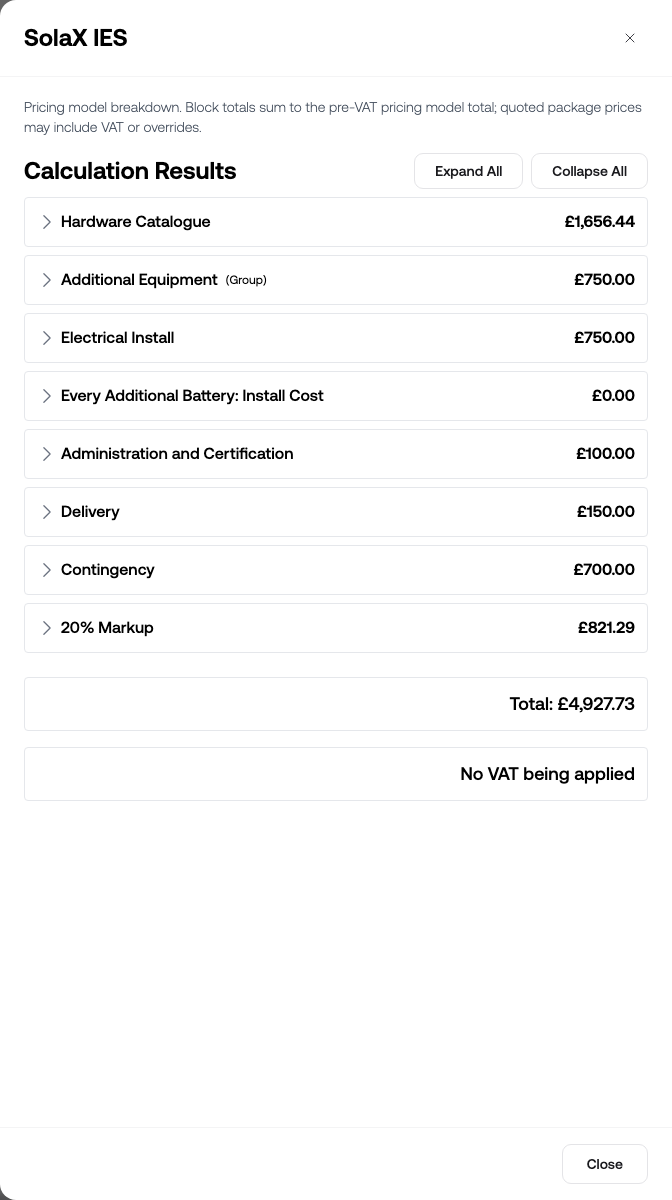
If no packages match, the section says so. Try a different battery size, or check which packages are assigned on the tool's Hardware Packages tab.
New tariff selection
The card is headed Your new tariff: the tariff the home will move to once the battery is installed. It opens on the recommended tariff. Change it if your customer has a different tariff in mind, then click Next step.
Before and after battery
Headline savings shows the modelled bill today, the modelled bill with the new battery, and the difference as First year savings. Below it, Before battery simulation and After battery simulation show how energy moves through the home on a typical day.
Savings over time
Payback and projected savings over the years set on the tool's Defaults tab. If you offer finance, your customer can choose an option here.
Add-ons
If your account offers extras that apply to battery quotes, they appear next, and you confirm them as you would any other section. If it does not, the quote goes straight to the summary.
Summary
The last section is the quote as your customer will read it: the chosen package and any add-ons itemised with a price each, and What's included and What's not included lists if you configured them.
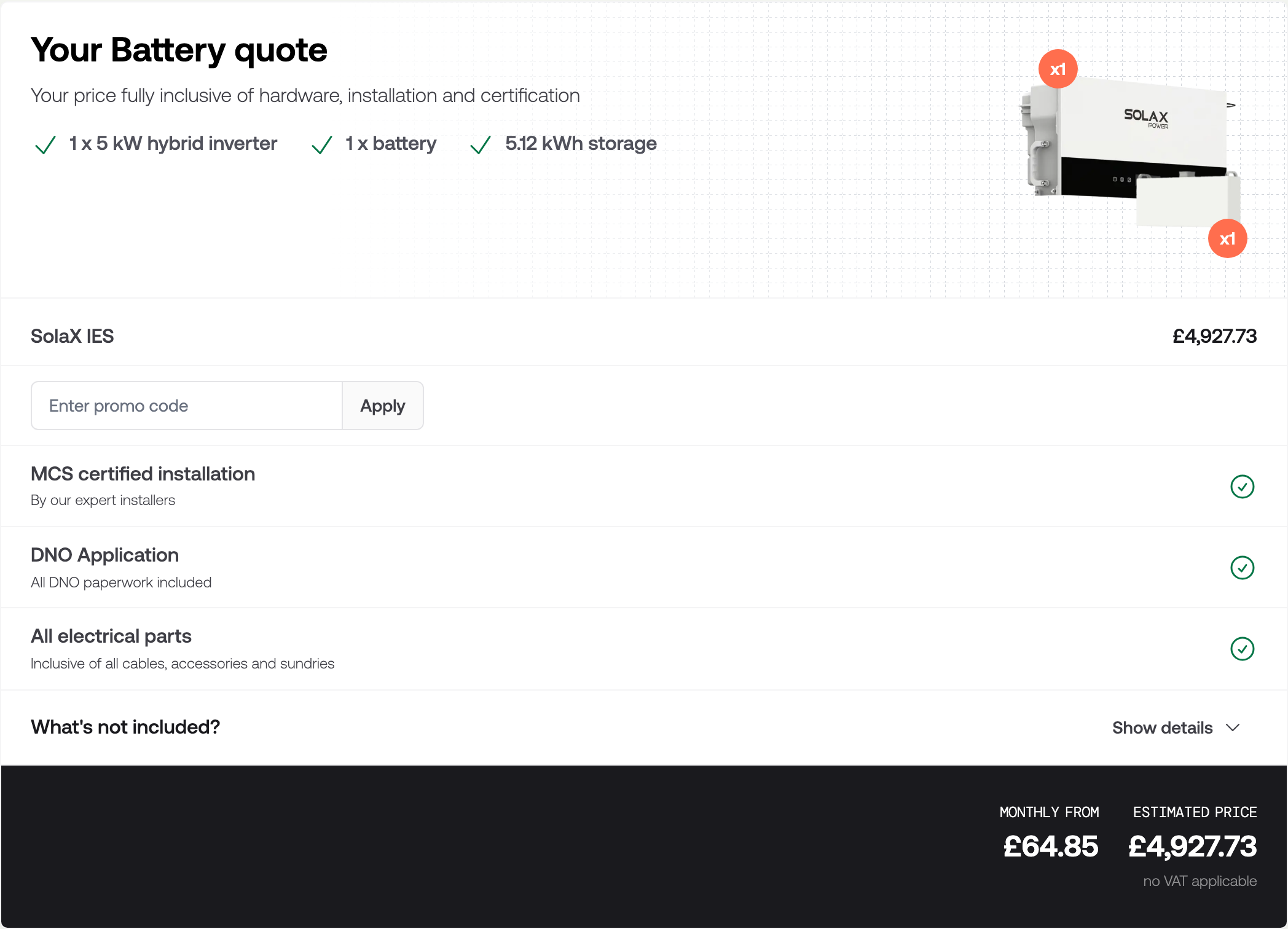
Below the price sits your call to action — contact details, terms, a signature, an appointment, or a deposit, depending on how the tool's acceptance is configured. You cannot accept on your customer's behalf; acceptance is switched off while you are working inside the quote, so they have to open the link themselves.
Send it to your customer
Click Settings to link the quote to a contact, then Share to copy the web address or send it by email. Both are covered step by step in Quoting on a customer's behalf.
Older battery quotes
Battery quotes started before this journey keep their original sections. You can open them but not change them. Your customer can still change the package and add-ons and accept, if they had already reached the package choice. Otherwise they are asked to start a new quote. An accepted quote cannot be changed by anyone.
Check it worked
- Look down the sidebar. Every section that applies has a summary line under it, and Summary is reachable.
- Open PDF in the sidebar and check the printable quote reads the way you would want it to arrive.
- Find the quote in Battery Quotes. It carries the Created by Admin tag, and Has Contact Info once you have set a recipient.
- Open the shared web address in a private browser window. That is exactly what your customer sees.
Related
- What your customer sees — the same sections from their side
- Battery Quote Tool settings — every configuration tab
- Quoting on a customer's behalf — setting a recipient, sharing, and emailing a quote
- Find and follow up on instant quotes — working the list once the quote is out